Using the Dual MF Film
Holderä for
Epson®
V700, V750, and V750-M Scanners
The Dual MF Film Holderä has been
designed to mimic the performance characteristics of the factory supplied Epson®
medium format holders. If you have
problems concerning color balance, system calibration and other software
related issues, please seek help with these issues from Epson® or your third-party software
supplier (e.g. Silverfast
or VueScan). The ScanTips.com
website is also a great resource to learn basic scanning techniques.
Inserting/Orienting
the Film Strip
Tip: You will probably find it easier to work with and align your film within the holder if you work on a light table or on a flat surface with a bright white sheet of paper lying underneath the film channels. The higher contrast makes it much easier to align your film within the film channel. A clean pencil eraser is a handy tool for moving/final adjusting of film strips placed in the holder.
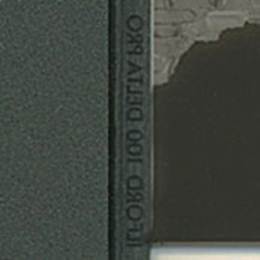 Epson® recommends inserting the film so the
emulsion side (dull side) is facing up and thus the manufacturer’s edge
markings on the film appear to read backwards.
If your film is relatively flat, orient the film this way first,
but don’t be afraid to experiment with the orientation of the emulsion because
some users claim they get better scans with the emulsion side down (most say
they can’t tell the difference). If you
scan your film “emulsion side down,” you may need to reverse or flip your
image. This is easily accomplished in
Photoshop by using the following menu commands: Image
> Rotate Canvas > Flip Horizontal.
Epson® recommends inserting the film so the
emulsion side (dull side) is facing up and thus the manufacturer’s edge
markings on the film appear to read backwards.
If your film is relatively flat, orient the film this way first,
but don’t be afraid to experiment with the orientation of the emulsion because
some users claim they get better scans with the emulsion side down (most say
they can’t tell the difference). If you
scan your film “emulsion side down,” you may need to reverse or flip your
image. This is easily accomplished in
Photoshop by using the following menu commands: Image
> Rotate Canvas > Flip Horizontal.
 If
your film strip has a pronounced arch/curl to it, place the film in the film holder so
it arches/curves away from the scanner glass.
You do not want the film’s arch/curl to allow the film to “bow”
down and come into contact with the scanner’s glass (usually causing “Newton
Rings”). When the film’s arch/curl is oriented correctly (away from the glass),
the T-Lock system (see below) will help to minimize arching/curling.
If
your film strip has a pronounced arch/curl to it, place the film in the film holder so
it arches/curves away from the scanner glass.
You do not want the film’s arch/curl to allow the film to “bow”
down and come into contact with the scanner’s glass (usually causing “Newton
Rings”). When the film’s arch/curl is oriented correctly (away from the glass),
the T-Lock system (see below) will help to minimize arching/curling.
Aligning the Film
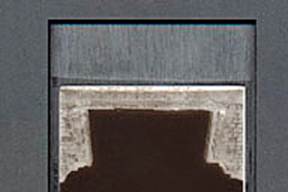 Place the film within the film holding
channel so that it aligns straight over the Dual
MF Film Holderä window.
Place the film within the film holding
channel so that it aligns straight over the Dual
MF Film Holderä window.
(In this
picture, the film has not yet been locked down in place by the T-Lock, so you
see a larger than normal gap along the sides due to the film’s “arch”.)
The Dual MF Film Holderä window (actual scanning aperture) is the same width as the Epson® film holder’s window and thus will “mask”/frame your film frames with the same constraints. The film channel (recessed area in which the film is placed) is slightly wider than normal by design. This makes it possible to scan out of specification films and images from cameras that do not center the image on the film (quite common). A clean pencil eraser is a handy tool for moving/final adjusting of film strips placed in the holder.
Important Notes on How The T-locks
Function
#1 – The T-locks are not
designed to fit into the holder very tightly in order to prevent premature wear
issues. The T-locks only need a slight
tension to stay in place and to push the film down flat.
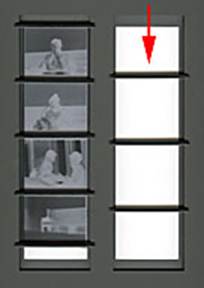 #2 - With the “dual” type of holders, if you only plan to use
one of the two film channels to just scan a single strip or frame of film, you
should also insert T-locks into the unused/empty film channel. When T-locks are only inserted in one film
channel, the holder can flex to the point T-locks may not fit tightly
enough. At a minimum, you should place
T-locks at positions approximately one quarter, one half and three quarters of
the length down the empty film channel. (See image on the left.)
#2 - With the “dual” type of holders, if you only plan to use
one of the two film channels to just scan a single strip or frame of film, you
should also insert T-locks into the unused/empty film channel. When T-locks are only inserted in one film
channel, the holder can flex to the point T-locks may not fit tightly
enough. At a minimum, you should place
T-locks at positions approximately one quarter, one half and three quarters of
the length down the empty film channel. (See image on the left.)
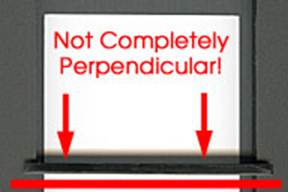 #3 - Due to the tight design tolerances of
the T-Lock, if you don’t have the T-Lock inserted perpendicular to the film
channel, it will not hold itself within the film holding channel. If you insert it at an angle, it may not hold
well and may cause premature wear of the T-Lock.
#3 - Due to the tight design tolerances of
the T-Lock, if you don’t have the T-Lock inserted perpendicular to the film
channel, it will not hold itself within the film holding channel. If you insert it at an angle, it may not hold
well and may cause premature wear of the T-Lock.
Inserting the
T-Lock
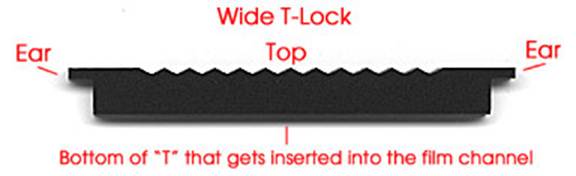
The laser cut T-Lock for Dual holders
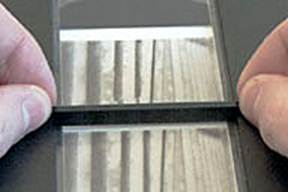 Grasp both ends of the T-Lock at the
“ears”. Align it so that it is perpendicular
to the sides of the Dual MF Film Holder’s
film holding channel.
Grasp both ends of the T-Lock at the
“ears”. Align it so that it is perpendicular
to the sides of the Dual MF Film Holder’s
film holding channel.
Now, gently
insert one side of the T-Lock bottom just barely down into the film
holding channel (1 mm or less).
Any more than this and you will risk damaging the T-Lock to the point
where it will not adequately hold itself in place.
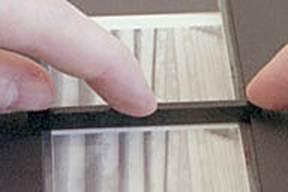 When applying pressure to the T-locks,
press on the thicker body of the T-lock as opposed to the thin “ears.” Now apply gentle pressure to the other side
of the T-Lock until it pops down into the film holding channel. Continue applying downward pressure evenly on
the T-Lock to firmly seat it into the film channel. While you don’t want to over exert pressure
on the T-Lock, you must push it in down far enough so that it holds the film
strip in place and keeps it from shifting.
When applying pressure to the T-locks,
press on the thicker body of the T-lock as opposed to the thin “ears.” Now apply gentle pressure to the other side
of the T-Lock until it pops down into the film holding channel. Continue applying downward pressure evenly on
the T-Lock to firmly seat it into the film channel. While you don’t want to over exert pressure
on the T-Lock, you must push it in down far enough so that it holds the film
strip in place and keeps it from shifting.
***Common
sense dictates that, to avoid damaging your film, it is imperative you let the
T-Lock come into contact with the film only in the frame gaps between the
images as shown in the picture. Once the
T-Lock is secured into the holder, DO NOT try to move it or your film while the
T-Lock is secured in the holder. If an
adjustment is needed, pull the T-Lock out and then reposition items into the
desired location before reinserting the T-Lock.
The T-Lock System
Allows Infinite Adjustability
 One of the main advantages of the T-Lock
system is its infinite adjustability. If
you plan to scan only one or two frames, you can “mask off” just the frames you
wish to scan. By placing the T-Lock
right up against/next to the frames to be scanned, you maximize the T-Lock’s
film-flattening abilities. Lock down one
end of the single frame with a T-lock across the top end of the film channel
(where it can lock and fully grip/compress the film against the lower part of
the film channel all the way across).
One of the main advantages of the T-Lock
system is its infinite adjustability. If
you plan to scan only one or two frames, you can “mask off” just the frames you
wish to scan. By placing the T-Lock
right up against/next to the frames to be scanned, you maximize the T-Lock’s
film-flattening abilities. Lock down one
end of the single frame with a T-lock across the top end of the film channel
(where it can lock and fully grip/compress the film against the lower part of
the film channel all the way across).
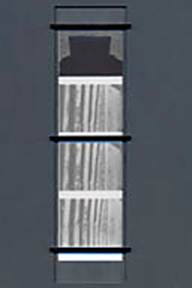 If you plan to scan a longer strip
consisting of multiple frames, there
are a few T-lock placement strategies that can be used. If you are using three T-locks, one technique
is to FIRST insert one T-Lock close to the middle of the strip at/over one of
the film strip’s frame gaps. Then insert
the second T-Lock at the top end of the film strip and the third T-Lock at the
other end of the film strip (see picture at left). If you are using four T-locks, the strategy
is pretty much the same where you first insert toward the middle and then work
your way outward. By inserting the
middle T-Lock(s) first, you minimize the chance of a wave or hump forming in
the middle of your film strip.
If you plan to scan a longer strip
consisting of multiple frames, there
are a few T-lock placement strategies that can be used. If you are using three T-locks, one technique
is to FIRST insert one T-Lock close to the middle of the strip at/over one of
the film strip’s frame gaps. Then insert
the second T-Lock at the top end of the film strip and the third T-Lock at the
other end of the film strip (see picture at left). If you are using four T-locks, the strategy
is pretty much the same where you first insert toward the middle and then work
your way outward. By inserting the
middle T-Lock(s) first, you minimize the chance of a wave or hump forming in
the middle of your film strip.
An alternative
technique is to place the film in the film channel, lock down one end of the
film strip with a T-lock across the top end of the film channel (where it can
lock and fully grip/compress the film against the lower part of the film
channel all the way across the opening instead of at just one point
on/along each side of the film channel), create a slight tension at the other
free end of the film by pulling on it the end of the strip, and then press in
the second T-lock at this other end.
Finally, insert the other T-Lock(s) in film frame gaps in the middle of
the strip. This technique really helps
to keep the film as flat as possible during the heat buildup of scanning. If
you plan to scan a longer strip consisting of one frame (e.g. 6x12 or 6x17),
I recommend this tension technique.
Users
of longer panoramic images, or film that is severely arched or curled, may wish
to purchase the optional ANR Insert that
utilizes anti-Newton Ring glass. Users
of XPanã images
and smaller film formats must use the ANR Insert. Click here for more
information on the insert.
Removing the T-Lock
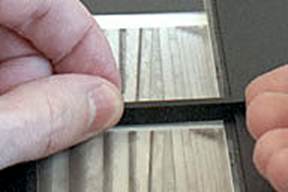 Due to the thinner “ears” on Dual MF Film Holderä
T-locks but thicker overall body, it is best to remove a T-lock by
grasping the T-lock toward the middle with both hands and gently pull upward. If
there is an occasion you need a little extra leverage, you can grasp the T-Lock
in the middle with one hand while inserting a fingernail under the end of the
T-Lock and gently pull up.
Due to the thinner “ears” on Dual MF Film Holderä
T-locks but thicker overall body, it is best to remove a T-lock by
grasping the T-lock toward the middle with both hands and gently pull upward. If
there is an occasion you need a little extra leverage, you can grasp the T-Lock
in the middle with one hand while inserting a fingernail under the end of the
T-Lock and gently pull up.
Correctly Placing
the Dual MF Film Holderä on Your Scanner
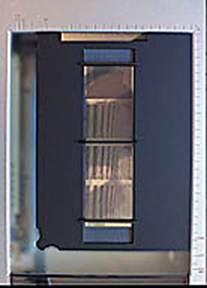 The Dual
MF Film Holderä should be placed directly on the scanner’s glass so that
the film holder channel and T-Locks face up (away from the scanner glass). For illustrative purposes an original MF Film Holderä is shown in the picture on the left,
but the placement will be the same.
The Dual
MF Film Holderä should be placed directly on the scanner’s glass so that
the film holder channel and T-Locks face up (away from the scanner glass). For illustrative purposes an original MF Film Holderä is shown in the picture on the left,
but the placement will be the same.
Once
the film is inserted in the holder, do
not let the holder drop or slap onto your work surface or the scanner’s
glass. If you do, an air cushion created
by dropping/slapping the holder can possibly shift your film’s position as well
as cause waves in the film. Always place
the holder gently down on any surface.
Auto-cropping errors are the #1
problem/complaint with flatbed scanners regardless of whether an Epson® OEM
holder or an MF Film Holder is being
used. Auto-cropping is notoriously inaccurate and often crops out
significant portions of an image. Most
people never realize this problem until they closely compare their scans to
their films. It is strongly advised that
manual cropping be utilized instead. If
you are unfamiliar with how to manually crop and set up a batch scan, please
see the in-depth instructions at the following link:
http://www.betterscanning.com/scanning/batchscanning.html
If you insist
on using autocropping, the second most common mistake
is failing to correctly select your film format size within the software itself
(e.g., 645, 6x6, etc.). Please double
check to make sure you have made the correct selection! See your software’s documentation if you need
help with this.
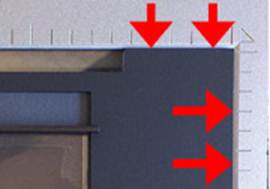 It
is important to make sure the Dual MF
Film Holderä is placed in the
upper right-hand corner of the scanner (nested directly against both the top
and right sides of the scanner bed). The
Dual MF Film Holderä
is designed to use almost all of the scanner’s light lid area, so
unsatisfactory positioning could result in partial miscropping
of your images. The correct
positioning makes sure the calibration notch is correctly positioned and will
ensure repeatability if using VueScan’s batching scan function to scan multiple
frames on your film strip.
It
is important to make sure the Dual MF
Film Holderä is placed in the
upper right-hand corner of the scanner (nested directly against both the top
and right sides of the scanner bed). The
Dual MF Film Holderä
is designed to use almost all of the scanner’s light lid area, so
unsatisfactory positioning could result in partial miscropping
of your images. The correct
positioning makes sure the calibration notch is correctly positioned and will
ensure repeatability if using VueScan’s batching scan function to scan multiple
frames on your film strip.
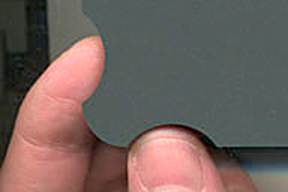 A finger grip has been built into the
each lower corner of the Dual MF Film
Holderä to help you get a grip on the holder and lift
the corners from the scanner’s glass.
After using the finger grip to lift the corner off the glass, you should
be able to easily slide your hand under the Dual
MF Film Holderä in order to fully
grasp the holder and then remove it from the scanner.
A finger grip has been built into the
each lower corner of the Dual MF Film
Holderä to help you get a grip on the holder and lift
the corners from the scanner’s glass.
After using the finger grip to lift the corner off the glass, you should
be able to easily slide your hand under the Dual
MF Film Holderä in order to fully
grasp the holder and then remove it from the scanner.
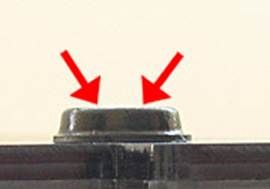 The surface on top of the rubber bumpers
can have a great deal of grip/stick. If
the bumpers begin to stick to the scanner’s transparency adapter when you open
the lid, put an extremely fine coat of baby/talcum powder dust on the top
surface. Gently and lightly wipe off any
excess powder. This will eliminate the
sticking.
The surface on top of the rubber bumpers
can have a great deal of grip/stick. If
the bumpers begin to stick to the scanner’s transparency adapter when you open
the lid, put an extremely fine coat of baby/talcum powder dust on the top
surface. Gently and lightly wipe off any
excess powder. This will eliminate the
sticking.
Click on the
following links to go to:
ORDER NOW - Pricing and Ordering Page
Back to the Page You Were Previously
Viewing
Optional Anti Newton
Ring Glass Insert for the Dual MF Film Holderä
Batch Scanning
Notes and Tips Page
Safety,
Return Policy, Warranty and Disclaimer Information
E-mail Contact: scanning@betterscanning.com
All information
contained in this website ©2024 by DSF OmniCorp, LLC and Doug Fisher.
This information may not be reproduced in whole, part or spirit without written
permission.
Patents Pending. All intellectual
property rights reserved.